
Best DNS for IPTV: Fix Buffering and Slow Starts
If every channel takes a few seconds to open, or your IPTV stutters when you flip around, your DNS is one of the first things to change – and it costs nothing. Swapping your provider’s default DNS for a fast public resolver often shaves the delay off each stream and can quietly cut buffering. This guide explains what DNS does, which resolvers are worth using, how to set them on your router or a single device, how to test the difference, and – just as honestly – when DNS is not the real problem.
On this page
What DNS does before your stream starts
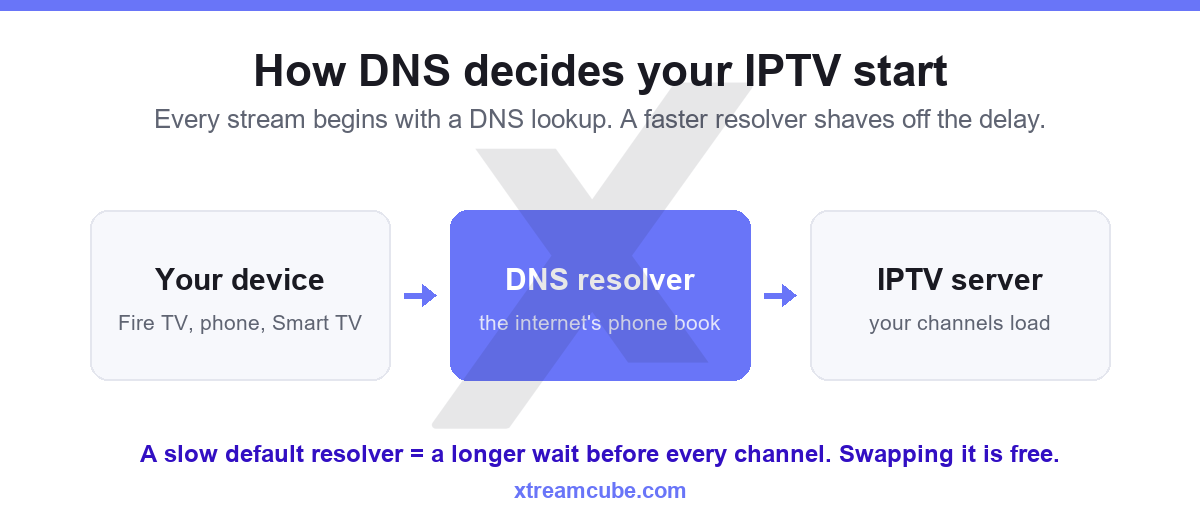
DNS – the Domain Name System – is the internet’s phone book. When your app opens a channel, it does not know the server’s numeric address yet; it asks a DNS resolver to translate the name into that address. Only then does the stream start to load. This happens for the first connection and, on many setups, repeatedly as you move around the guide.
If the resolver answering those questions is slow or far away, every one of those lookups adds a small delay – and small delays, stacked across channel after channel, are exactly what “it takes ages to open” feels like. A fast resolver answers almost instantly, so the stream gets going sooner. That is the whole reason people change their DNS for IPTV: not magic, just cutting out an avoidable wait.
Why your provider’s default DNS can be the problem
By default, your device uses whatever DNS resolver your internet provider hands out. That resolver is fine for ordinary browsing, but it is not always built for speed, it can sit far from you, and it is sometimes overloaded at peak times – the same evenings your IPTV feels worst. On top of that, some providers use their DNS to apply simple blocks, which can make certain streams fail to resolve at all even though your subscription is perfectly fine.
Because the resolver is just a setting, you are free to point your device at a faster, public one instead. Nothing about your subscription changes – you are only choosing a quicker phone book.
The DNS resolvers worth trying
These three are public, free, and generally faster than a typical provider default. Each has a primary and a secondary address – enter both so there is a backup.
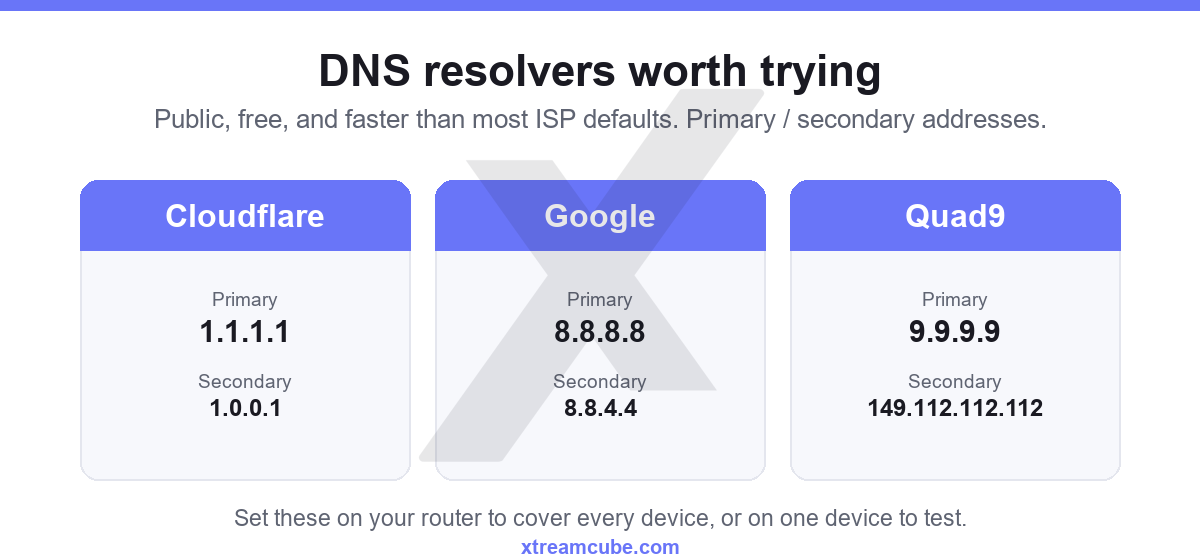
- Cloudflare – 1.1.1.1 and 1.0.0.1. The fastest for most people, with minimal logging. If you only try one, try this.
- Google – 8.8.8.8 and 8.8.4.4. Reliable, well supported, and available almost everywhere.
- Quad9 – 9.9.9.9 and 149.112.112.112. Similar speed, and it also blocks known malicious domains, which some people prefer.
There is no single “best DNS for IPTV” for everyone – it depends on where you are. The honest method is to try Cloudflare first, and if you are curious, test one of the others against it (we cover how below).
Change DNS on your router (covers every device)
Setting DNS on your router is the cleanest option, because every device on your network – including a Smart TV that has no DNS setting of its own – uses it automatically. The steps vary by brand, but the shape is always the same:
- Open your router’s admin page (usually an address like
192.168.1.1typed into a browser, with the login on a sticker on the router). - Find the DNS settings – often under Internet, WAN, or DHCP.
- Switch from “automatic” to manual, and enter a primary and secondary address from the list above.
- Save, then restart the router so every device picks up the change.
Do this once and your Fire TV Stick, phone, boxes and televisions are all covered.
Change DNS on a single device
If you only want to test, or your router will not let you change DNS, set it on one device instead:
- Fire TV Stick / Android: network settings do not always expose DNS directly, so people usually use a small DNS app to point the device at a resolver. Our IPTV on Firestick guide covers a clean setup.
- Android phone or tablet: under Wi-Fi, edit the network and set the IP to “static” to reveal DNS fields, or use the system “Private DNS” option.
- Smart TV: many TVs let you set a manual DNS under network settings; if yours does not, change it on the router instead.
A single-device change is the fastest way to A/B test a resolver before you commit the whole network to it.
How to test whether it actually helped
Do not guess – measure. The simplest test is a stopwatch and your own eyes:
- Before changing anything, open five channels in a row and count how long each takes to start. Note any stutter.
- Change the DNS, restart the device or router, and repeat the exact same five channels.
- If they open faster and flip more smoothly, keep the new resolver. If nothing changes, DNS was not your bottleneck – and that is useful to know too.
Speed is the foundation underneath all of this. If the underlying line is weak, no resolver will rescue it – our guide on the internet speed IPTV needs covers the numbers that matter.
When DNS will not fix it
This is the part the listicles skip. DNS is one lever, not a cure-all. It will not help when:
- Your provider is throttling streaming. If buffering only hits in the evening, the issue may be your provider slowing video rather than resolving names slowly. Changing DNS does nothing there – a VPN can. See do you need a VPN for IPTV and why IPTV keeps freezing or buffering.
- Your connection is simply too slow or unstable. A weak Wi-Fi hop or an overloaded line shows up as buffering no matter which resolver you use.
- The problem is on the service side. If a specific channel is down for everyone, that is not your DNS.
The right order is: test DNS first because it is free and quick, then look at speed and throttling if the guide still stutters.
Questions people ask
What is the best DNS for IPTV?
For most people, Cloudflare’s 1.1.1.1 (with 1.0.0.1 as secondary) is the fastest and the easiest first choice. Google’s 8.8.8.8 and Quad9’s 9.9.9.9 are strong alternatives worth testing against it.
Does changing DNS really speed up IPTV?
Often, yes – it cuts the lookup delay before each stream and can reduce buffering caused by a slow or overloaded resolver. It will not help if the real problem is throttling or a weak connection.
Is it safe to change my DNS?
Yes. It only changes which resolver translates names to addresses. You can switch back to automatic at any time, and it does not touch your subscription.
Should I set DNS on the router or the device?
The router, if you can – it covers every device at once, including Smart TVs. Use a single device only to test or when the router will not allow it.
Quick checklist
- Note how fast five channels open now.
- Set Cloudflare 1.1.1.1 / 1.0.0.1 (on the router if possible).
- Restart the router or device.
- Re-test the same five channels.
- Faster? Keep it. No change? Look at speed and throttling instead.
Try it on a line that is built to be smooth
A good resolver helps, but it works best on top of a stable service. With XtreamCube you can see for yourself: start a free trial, set a fast DNS, and watch how quickly your channels open.