
How to Set Up IPTV on TiviMate (Step by Step)
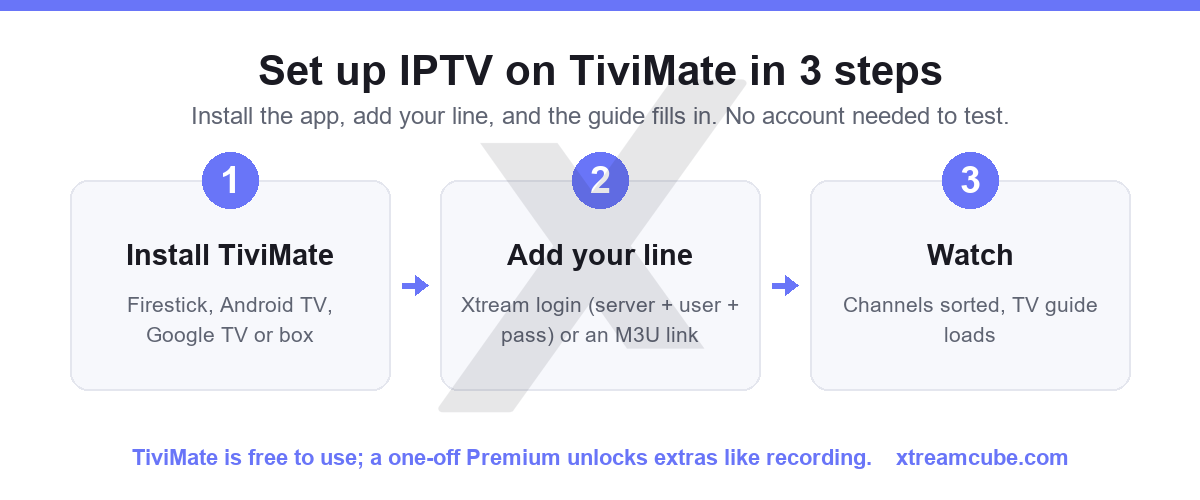
TiviMate is one of the smoothest ways to watch IPTV – and setting it up takes only a few minutes. Install the app, add your line, and let the TV guide fill in. This guide walks through the install on every common device, both ways to add your subscription, how to get the guide working, the free-versus-Premium question, and the snags people hit.
On this page
Why people use TiviMate
TiviMate is a player app: it does not sell channels, it just plays the line you already have, with a clean guide, favourites and a tidy layout. People pick it because it is stable, it reads both common formats, and it keeps the TV guide up to date on its own. If you are still weighing players, our best IPTV players guide compares them, and the TiviMate page has the short version.
Install TiviMate on your device
TiviMate runs on Android-based devices. The install differs slightly by hardware, but the idea is the same – get the app, open it, then add your line.
- Fire TV Stick: TiviMate is not in the Amazon store, so most people use the Downloader app to side-load it. Our IPTV on Firestick guide walks through that cleanly.
- Android TV box / Google TV / NVIDIA Shield: install it from the Google Play Store, open it, and continue below.
- Android phone or tablet: also from the Play Store – handy for testing before you set it up on the big screen.
Add your line: Xtream login or M3U
When TiviMate asks to add a playlist, you have two choices – and they carry the same channels:
- Xtream Codes login (recommended): choose “Xtream Codes”, then enter the server URL, username and password. TiviMate pulls your channels already sorted into Live, Movies and Series, usually with the guide attached. If that format is new to you, see what an Xtream login is.
- M3U playlist: choose “M3U Playlist”, paste the single link, and TiviMate loads it as one list. If you only have one format but your setup wants the other, our free Xtream to M3U converter switches between them.
The Xtream login is the smoother choice in TiviMate because it refreshes the line-up and guide for you.
Get the TV guide (EPG) working
With an Xtream login the guide usually appears on its own. If it is blank, add an EPG source: open TiviMate’s settings, go to EPG, choose “Add EPG source” and paste your EPG URL. Our full walkthrough – including why the guide sometimes will not show and how to match it to your channels – is in how to add EPG to your IPTV app.
Free vs Premium
TiviMate is free to use for a single playlist, which is all most people need to get going. A one-off Premium upgrade adds extras – multiple playlists, recording, and a few interface options. It is optional: the free version plays your line and shows the guide perfectly well. Start free, and only pay if you actually want the extras.
Common snags and fixes
- “Xtream Codes not working” or an error on login: almost always a typo in the server URL or password. Re-enter them carefully – a single wrong character stops the whole list loading.
- Guide is empty or out of date: add or re-check the EPG source, then force a refresh. See the EPG guide.
- Buffering, especially in the evening: that is usually the connection, not TiviMate. Our guides on buffering and whether you need a VPN cover it.
- App will not install on Firestick: follow the Downloader steps in the Firestick guide.
Questions people ask
Is TiviMate free?
Yes, for a single playlist. A one-off Premium upgrade adds extras like multiple playlists and recording, but the free version is enough to watch.
Does TiviMate come with channels?
No. TiviMate is only a player – you add your own line (an Xtream login or M3U). It does not provide a subscription.
Should I use Xtream Codes or M3U in TiviMate?
The Xtream login is smoother: it sorts your channels and refreshes the guide automatically. An M3U link works too but arrives as one flat list.
Why is my TiviMate guide not showing?
Either there is no EPG source set, the URL is wrong, or the guide does not match your channels. Re-check the EPG source and refresh it.
Try it with a line that just works
XtreamCube gives you an Xtream login, so TiviMate loads your channels and guide in a couple of minutes. Start a free trial, add it to TiviMate, and see how quickly everything fills in.